
In today's NetSuite guide, we'll discuss how to set up dashboards.
1. Log in to the role where you wish to set up a dashboard.
2. Navigate to your home dashboard.

3. Click the Personalize dropdown to customize the content of the home dashboard. It will show you the available portlets.

Content available for display in the NetSuite dashboard:
4. Click on a portlet to add it to your NetSuite dashboard.

5. Some of the portlets on the Standard Content tab are grayed out. If so, go to the Currently Used section to check if it's already been added to your dashboard.

6. On some of your dashboard portlets, you can define the data and layout when you click on the Set Up link on the menu at the right side of the title bar.
However, if a portlet does not have a menu with a Set Up link, its data and layouts are not configurable.

7. For instance, when you set up a reminders portlet, you can choose a reminder from the left list or drag it to the Current Selections list.

8. Rearrange the order of the reminders or add it as a headline by dragging up and down in the list.
9. Click Save when you're done. Note that the steps for setting up a portlet vary depending on its content.
10. Click the refresh icon on the title bar to ensure that it shows the latest data.

11. You can also publish your personalized dashboard to other roles if the role you're currently logged in, and your target roles uses the same Center Type.
For instance, if you set up a Sales Person dashboard, you can publish a personalized dashboard to the roles tied to a Sales Center.
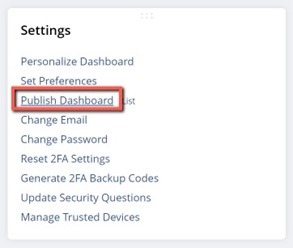
12. From the home dashboard, go to the Settings portlet and click on the Publish Dashboard link.
You must have the 'Publish Dashboards' permission to utilize this option.
13. Enter a name for your dashboard.
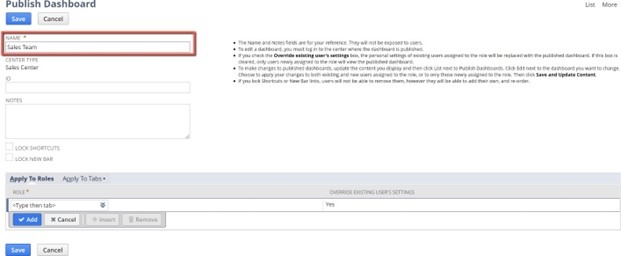
14. Select the role(s) where you wish to publish this dashboard in the Apply to Roles dropdown.

15. Mark the Override Existing User's Settings to override the dashboard layout of all current users, or unmark the checkbox to publish it only to new users assigned to the selected role.

16. Go to the Apply to Tabs link, select the tab where you will apply the dashboard.
Under the Mode dropdown, select Locked if you don't want users to make any changes to their dashboards after you publish.

17. Click Save when you're done setting up your dashboard in NetSuite. Users will have to log out and log back in to see the new dashboard.
As a highly accredited NetSuite Solution Provider, ScaleNorth is well-positioned to help you with the full scope of your NetSuite customization needs. If you require more NetSuite assistance, contact ScaleNorth today.


